Source: http://dynamicsuser.net/forums/p/17111/79705.aspx
Step 1: Create a new Project
Step 2: Double Click on the new project to open it
Step 3: Click on filter icon
Step 4: Under Grouping choose AOT
Step 5: Click on Select
Step 6: For utilLevel choose the layer you want to see what was modified
Step 7: Click OK to close search window
Step 8: Click OK on project Filter
This will add all objects to your new project that were modified in the specified layer.
woensdag 30 juni 2010

woensdag 19 mei 2010
Access Form Control without Autodeclaration
Source: http://www.artofcreation.be/2010/04/13/odd-code-in-ax-2-control-enum-on-forms/
Example: disable control named "ButtonFunctions".
element.control(Control::ButtonFunctions).enabled(false);
Also: http://dynamicsuser.net/forums/p/43984/222374.aspx
Enable/disable form field in datasource field modified method:
public void modified()
{
super();
if (CEMPAbsence.Accrual == Accrual::Yes )
{
CEMPAbsence_ds.object(fieldNum(CEMPAbsence,AccrualType)).enabled(True);
}
Example: disable control named "ButtonFunctions".
element.control(Control::ButtonFunctions).enabled(false);
Also: http://dynamicsuser.net/forums/p/43984/222374.aspx
Enable/disable form field in datasource field modified method:
public void modified()
{
super();
if (CEMPAbsence.Accrual == Accrual::Yes )
{
CEMPAbsence_ds.object(fieldNum(CEMPAbsence,AccrualType)).enabled(True);
}
dinsdag 4 mei 2010
Detecting default values
Use the int prmIsDefault(anytype argument) function.
See: http://sysdictcoder.com/blog/detecting-default-values/
Example:
See: http://sysdictcoder.com/blog/detecting-default-values/
Example:
static void ADU_BMS_prmIsDefault(Args _args)
{
    container   myCon;

    str prmIsDefaultTest(container _con = myCon)
    {
        ;
        if (prmIsDefault(_con))
        {
            return "parameter was not provided, using default";
        }
        else
        {
            return "parameter was provided, using provided parameter";
        }
    }
    ;

    info(strfmt("test without parameter: %1", prmIsDefaultTest()));
    info(strfmt("test with parameter: %1", prmIsDefaultTest(myCon)));

    // Infolog output:
    // test without parameter: parameter was not provided, using default
    // test with parameter: parameter was provided, using provided parameter
}
Creating a user manual or step-by-step reproduction of a problem - Windows 7
Ever struggled with screencaptures and MS Word to create a manual, or step-by-step reproductions of a problem?
Try this: start – run – PSR (Windows 7 only)
It’s like the Task Recorder in AX.
Try this: start – run – PSR (Windows 7 only)
It’s like the Task Recorder in AX.
InventOnHand vs InventDimOnHand
source: http://axforum.info/forums/showthread.php?t=31363
and http://www.dynamicsaxtraining.com/tips-tricks/inventonhand-vs-inventdimonhand
What's the difference between InventOnHand and InventDimOnHand classes and in what cases they must be used?
Axapta InventOnHand class is wrapper for InventSum table. Unique index for InventSum table is ItemId + InventDimId. In other word, this class is used to get on hand for item with specific dimension. For example, if you require getting on-hand qty for “Bottle” items that have “green” color, “standard” size and are stored in “22” warehouse, “1” Aisle, “4” Shelf then you use InventOnHand class.
But, if you require getting on-hand qty for warehouse location then InventOnHand class couldn’t help us. Because one location could contains different items. Or if you require get on-hand qty for pallet. In these cases InventDimOnHand class must be used. This class is used when you require on-hand qty for specific inventDim. InventDimOnHand сlass consists of InventDimOnHandMember classes. Each InventDimOnHandMember class contains information about Item, Dimensions and Qty.
and http://www.dynamicsaxtraining.com/tips-tricks/inventonhand-vs-inventdimonhand
What's the difference between InventOnHand and InventDimOnHand classes and in what cases they must be used?
Axapta InventOnHand class is wrapper for InventSum table. Unique index for InventSum table is ItemId + InventDimId. In other word, this class is used to get on hand for item with specific dimension. For example, if you require getting on-hand qty for “Bottle” items that have “green” color, “standard” size and are stored in “22” warehouse, “1” Aisle, “4” Shelf then you use InventOnHand class.
But, if you require getting on-hand qty for warehouse location then InventOnHand class couldn’t help us. Because one location could contains different items. Or if you require get on-hand qty for pallet. In these cases InventDimOnHand class must be used. This class is used when you require on-hand qty for specific inventDim. InventDimOnHand сlass consists of InventDimOnHandMember classes. Each InventDimOnHandMember class contains information about Item, Dimensions and Qty.
vrijdag 9 april 2010
Form Radiobutton values
Ever wondered where the values in a Form RadioButton come from?
The properties of the Radiobutton AOT-object only show one value.
Where's the rest?
As an example, I'm using the DEV_SysTableBrowser, which can be found on Axaptapedia.
The AOT of that project - folded out to the radiobutton - looks like this:

When we run the form, it looks like this:
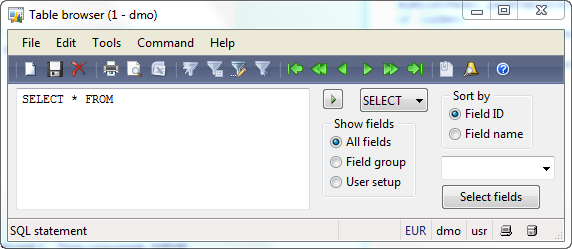
The radiobutton is grouped in the "Show fields" group, and has 3 values:

So, we know that there are 3 items, and that item 1 has the value (Text) "All fields".
But where are the other 2 values?
Actually, they are also there, and here's how to reveal them:
Step 1: Select the Item property

Step 2: Enter the number of the item for which you want to see or set the value

Step 3: Tab out of the Item property

Notice that the Text property still says "All fields" (Item 1), while we have indicated that we want to see Item 2.
This is due to a refresh issue.
The Text doesn't get refreshed when the Item property changes.
We'll have to do the refresh ourselves.
Step 4: Select the Text property

Step 5: Tab out of the Text property

And there you have the value of the second item :)
These values are actually stored in an array.
This is the part of the .XPO file that defines this RadioButton.
See the highlighted part.

The properties of the Radiobutton AOT-object only show one value.
Where's the rest?
As an example, I'm using the DEV_SysTableBrowser, which can be found on Axaptapedia.
The AOT of that project - folded out to the radiobutton - looks like this:

When we run the form, it looks like this:

The radiobutton is grouped in the "Show fields" group, and has 3 values:
- All fields
- Field group
- User setup

So, we know that there are 3 items, and that item 1 has the value (Text) "All fields".
But where are the other 2 values?
Actually, they are also there, and here's how to reveal them:
Step 1: Select the Item property


Step 3: Tab out of the Item property

Notice that the Text property still says "All fields" (Item 1), while we have indicated that we want to see Item 2.
This is due to a refresh issue.
The Text doesn't get refreshed when the Item property changes.
We'll have to do the refresh ourselves.
Step 4: Select the Text property

Step 5: Tab out of the Text property

And there you have the value of the second item :)
These values are actually stored in an array.
This is the part of the .XPO file that defines this RadioButton.
See the highlighted part.

Abonneren op:
Posts (Atom)